Aperture, shutter speed and ISO on three dials that never leave the screen. A zoom ring marked in millimetres. Focus modes, white balance, a live histogram and RAW, laid out the way your camera does it.
If you know what f/5.6, 1/125 and ISO 100 will look like before you press the shutter, Mirilla lets you use that knowledge on your iPhone.
The phone’s own camera decides everything for you. Mirilla gives the decisions back.
When the main camera is in the bag, or a lens change would cost you the shot.
Mirilla opens straight into the viewfinder with the last settings you used. There are no hidden modes and no settings screen: every control is either on the screen or one tap away from it.
Three rotary dials in third-stop clicks with a light haptic on each step. They stay on screen; the eye button hides them when you want a clean view.
Mirilla converts your settings into what the lens can actually do and tells you what it used. Variable aperture is used on the iPhone 18 Pro main camera.
Drag or tap the ring; Mirilla switches to the ultra-wide, main or telephoto camera for that focal length, and adds digital zoom only above a lens’s native length.
Double-tap to place the focus point. The square turns yellow while focusing, green when sharp, and red with a warning when you are closer than the lens can focus.
Sun, Cloud, Shade, Incandescent, Fluorescent, a 2500–10000 K slider, or a preset measured off a white or grey card.
Brightness of the live view, with a red edge for blown highlights and a blue edge for crushed shadows.
HEIF at 12, 24 or 48 MP; RAW (DNG) at 12 or 48 MP on phones that support it. Frames: full screen, 16:9 and 4:3.
Store aperture, shutter, ISO, white balance, frame and format, like the user positions on a mode dial.
Every shot is reviewed before saving, with an info strip showing exposure, size, date and position. Save to Photos, or to Files in several sizes.
A phone lens cannot reach every aperture a camera lens can. Mirilla keeps the brightness you asked for and shows you exactly how it got there, instead of quietly changing your settings.
Example readouts. Exact values depend on the lens and the phone.
A short manual, in the order you will meet things. Tap i at the top left of the camera screen at any time for a summary in the app.
The first time you open Mirilla, a short introduction explains what the app does. Tap START to go to the camera.
Mirilla then asks for three permissions, each only when it is needed:
If you declined camera access, the screen shows CAMERA ACCESS IS OFF with a button that opens Settings.
Put a finger on a dial and turn it like a real one: clockwise to increase, counter-clockwise to decrease. Each click is one third of a stop, with a light tap you can feel.
| Dial | Range |
|---|---|
| Aperture | f/1.4 – f/16 |
| Shutter | 1 s – 1/16000 s |
| ISO | 100 – 4000 |
Changing one dial never moves the others. Mirilla works out how the phone can achieve that exposure (see How exposure works) and shows it on the REAL line when it differs.
The ring is marked in 35 mm-equivalent focal lengths: 13 · 24 · 28 · 35 · 48 · 100 · 200. Drag it or tap a number to jump there. Pinch the viewfinder for anything in between; the ring then rests between two numbers.
Mirilla chooses the camera itself: the ultra-wide below 24 mm, the main camera from 24 mm, and the telephoto from its native focal length (100 mm on the iPhone 18 Pro). Above a lens’s native length it adds digital zoom on that lens. Focal lengths a phone cannot reach are dimmed.
| Mode | What it does |
|---|---|
| AF-S | Focuses once where you double-tap, then locks. |
| AF-C | Keeps refocusing on the chosen point. |
| MF | A slider sets the distance: macro on the left, mountains on the right. |
Double-tap the viewfinder to place the focus point; a light tap confirms focus. Double-tap the square again to return to the centre.
Tap the WB box and choose:
| Setting | Box | Temperature |
|---|---|---|
| Auto | AUTO | automatic |
| Daylight | SUN | 5200 K |
| Cloudy | CLOUD | 6000 K |
| Shade | SHADE | 8000 K |
| Incandescent | INCAN | 3000 K |
| Fluorescent | FLUO | 4200 K |
| Kelvin… | nnnnK | slider, 2500–10000 K |
| Measure… | PRE | measured |
Tap the format box to choose the file type and resolution. The list shows only what the current lens and phone support.
The frame buttons set the shape of the photo: FULL (the shape of your screen), 16:9 or 4:3. The viewfinder shows exactly that shape, with black bars around it, so what you see is what you get.
The histogram at the top right shows the brightness of the live view: shadows on the left, highlights on the right.
Tap ✕ to hide it and the chart button to bring it back. Mirilla remembers your choice.
Each button cycles through its settings with a tap.
Two user presets, like the U1 and U2 positions on a camera’s mode dial. Each stores:
aperture shutter ISO white balance frame format
While your settings match a preset exactly, the button turns yellow and shows its name.
After each shot, Mirilla shows the photo full screen. Pinch or double-tap to check focus; a marker shows where focus was set.
| Button | What it does |
|---|---|
| RETAKE | Discards the photo. |
| SAVE | Saves to your Photos library. |
| FILES ▾ | Saves to the Files app instead, without touching Photos. |
Useful for quick reference shots (a receipt, a label, a whiteboard) that don’t belong in your photo library. Choose a size:
| Size | Longer side | File |
|---|---|---|
| Full size | as captured | HEIF, or DNG for RAW |
| Large | 4000 px | HEIF |
| Medium | 2400 px | HEIF |
| Small | 1280 px | HEIF |
Files are in Files › On My iPhone › Mirilla. Reduced sizes have the size in their name, for example Mirilla_20261115_103649_212_2400.heic.
The strip at the bottom of the review screen works like a camera’s playback display:
Every saved file carries full EXIF: camera and lens, exposure, focal length, date, and GPS position when location is allowed. Photos, Lightroom and other editors show it as they would for any camera.
| On your camera | In Mirilla |
|---|---|
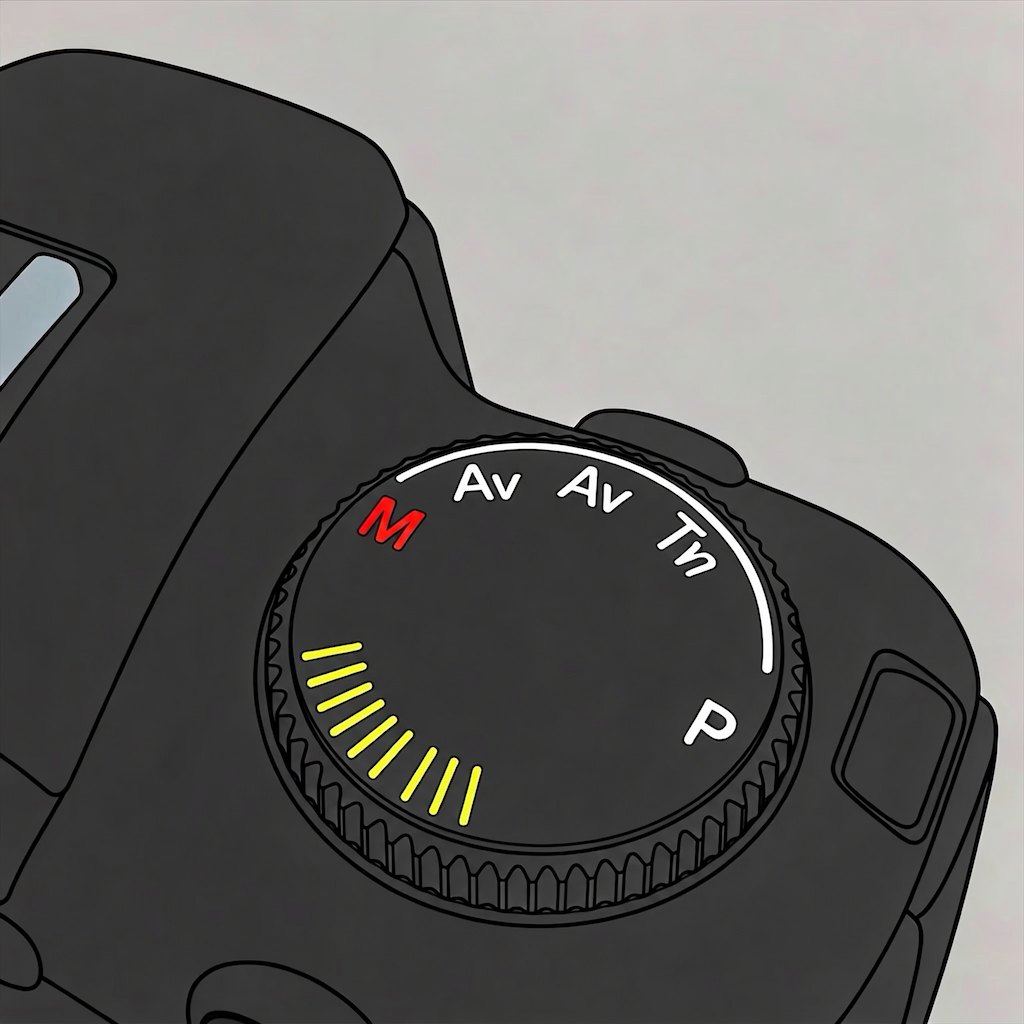
| Mode dial at M | Always. Mirilla is manual exposure only. |
| Front and rear command dials | Aperture and shutter dials; ISO has its own. |
| Zoom ring | Zoom ring, 13–200 mm equivalent |
| AF-S / AF-C / MF switch | Focus selector by the shutter |
| AF point selection | Double-tap the viewfinder |
| WB button / preset manual | WB box › Measure… › SET |
| Image quality (RAW / JPEG) | Format box: HEIF or RAW |
| Crop / aspect ratio | FULL · 16:9 · 4:3 |
| U1 / U2 on the mode dial | U1 · U2 button in the dials panel |
| Image review | Review screen with info strip |
| Self-timer | Timer button, 3 s or 10 s |
| Exposure compensation | Not needed: you set the exposure directly. |
Any iPhone with iOS 17 or later. What you get depends on the phone: the real aperture moves only on cameras with variable aperture (the iPhone 18 Pro main camera). Elsewhere the aperture dial still sets the exposure, through shutter and ISO. The zoom ring offers the focal lengths your phone’s cameras can reach, and RAW and 48 MP appear where the phone supports them.
The iris on the iPhone 18 Pro main camera stops at f/4, and other phone lenses don’t have an adjustable iris at all. Beyond what the lens can do, Mirilla keeps the brightness correct with the shutter and ISO, but it cannot change depth of field. The REAL line always shows the aperture actually used.
A RAW file contains the full sensor, which is 4:3. Mirilla shows you that whole frame in the viewfinder while RAW is selected, so nothing appears in the file that you didn’t see. Crop to any shape in your editor.
The camera cannot produce the exposure you dialled, even with every setting at its end stop. For example, f/16 at 1/8000 on a lens that stops at f/4 would need a shutter four stops faster than 1/8000 and an ISO below the sensor’s minimum. The number shows how much brighter (+) or darker (−) the photo will be than you asked, in stops.
A live view running at 1/4 s would stutter and smear. Mirilla keeps the viewfinder fluid with a faster shutter and higher ISO at the same brightness, and switches to your real shutter only for the photo.
No. The position is written only into your own photo files, on your phone. Mirilla has no account, no analytics and no servers. You can turn location off in Settings › Mirilla at any time.
Open the Files app and go to Browse › On My iPhone › Mirilla. Pull down to refresh if a new photo doesn’t appear straight away.
Yes. Dials, frame, white balance (including a measured preset), format, histogram visibility and the U1 and U2 presets are all kept between launches.